Fixed the issue where Biped Prop position/rotation animation data was lost during rig replacement (Replace).
🔔 Update Notification Improvement
The update notification UI has been improved to be cleaner when a new version is released.
You can go directly to the download page.
🔧 Improvements
🖥️ UI Stability Enhancement
The License menu has been changed to Qt native mode, making the UI operate more stably.
Fixed PySide2-related UI errors that occurred in some 3ds Max versions.
⚡ Internal Structure Optimization
The license authentication module has been modularized, improving authentication speed and stability.
Exception handling throughout the entire code has been strengthened, preventing 3ds Max from freezing or crashing even in unexpected situations.
📋 How to Update
An automatic update notification is displayed when Fast Ref is launched.
Or you can download directly from the download page.
💬 Feedback
If you have any inconveniences or suggestions while using it, please let us know through the feedback page anytime!
Thank you. 🙏
— OtakuSolutions Team
Fast-Ref
Bug Fix
2026-02-04
Fast_Ref / Batch 1_0_2 Update Notes
📢 Fast Ref v1.0.2 Update Contents
🔧 Bug Fixes
Improved CONVERTED reference stability: Resolved data compatibility issues with converted references in the scene
Legacy data compatibility: Fixed issue where layer information saved in previous versions was not loading correctly
✨ Feature Improvements
Biped Prop Scale animation support: Scale animation of Prop nodes (weapons, props, etc.) is perfectly restored even during Replace
Improved license authentication stability: Applied new V2 authentication system
🎨 UI Improvements
Added Namespace warning during Merge: Notifies you in advance when merging with Namespace enabled
Added usage guide to Help menu: Go directly to the official guide page from Help > Usage Guide
License Menu Improvements
Fast-Ref
New Feature
2026-01-29
Fast_Ref / Batch 1_0_1 Update Notes
-Improved and optimized UI (as of 26.0119)
Feature Improvements
Frame restoration after Replace: Automatically returns to the previously viewed frame after the operation is complete
Rig Info UI optimization: Faster and more stable UI loading
Security Enhancements
Strengthened prevention of Path Traversal attacks when generating FBX Export filenames
Added logic to prevent hidden file creation
UI Improvements
Rig Info node - Unified save button text ("Save Settings")
Rig Info node - BipedPlus module disabled by default (manual activation when needed)
Fast-Ref
New Feature
2026-01-19
📦 Rig Data Manager User Guide
🤔 What Is This?
Rig Data Manager is a feature that saves additional information to character rig files.
Once configured, it is processed automatically later, making your work much easier!
😕 Have You Ever Experienced This?
1. I wish the Fast-Ref link worked faster
2. I wish only my designated controllers' animations were restored
3. I added a reference, but the Selection Set isn't loading?
4. Fast-Ref exports automatically, but I only want to extract what I need?
5. This character needs the body and weapons extracted separately as 2 each...
✨ Rig Data Manager Solves It!
Before
After
Manually restore animations after replacing reference
✅ Automatic Restoration
Manually select nodes every time FBX Export
✅ Use Saved Selection Set
Manage Selection Set separately for each scene
✅ Saved Together in Rig File
Must remember constraint information
✅ Automatically Reconnected
Set once → Keep using it easily!
🧩 What Are Fast-Ref / FBX / BipedPlus?
Rig Data Manager is an integrated information node shared by OtakuSolutions products.
Since each product requires different information, they are separated by module:
Module
Product
Description
Fast-Ref
Fast-Ref
Information required for reference system
FBX
Fast-Ref (FBX Export function)
FBX export settings
BipedPlus
BipedPlus
Information required for Reset/Mirror functions
💡 Check only the products you use!
예시 1) Fast-Ref만 사용하는 경우
☑️ Fast-Ref ☐ FBX ☐ BipedPlus
예시 2) Fast-Ref + FBX Export 사용하는 경우
☑️ Fast-Ref ☑️ FBX ☐ BipedPlus
예시 3) 모든 기능 사용하는 경우
☑️ Fast-Ref ☑️ FBX ☑️ BipedPlus
⚠️ You don't need to check products you don't use! Just save what you need.
📋 What Each Module Saves
1️⃣ Fast-Ref (Basic)
Information for automatic restoration when replacing references:
Saved Item
What does this provide?
Biped Info
Animation automatically restored even when replacing reference!
Controller List
Constraints automatically reconnected!
Skin Info
Automatically detected during FBX Export!
2️⃣ FBX Export Settings
Settings to make FBX exporting convenient:
Saved Item
What does this provide?
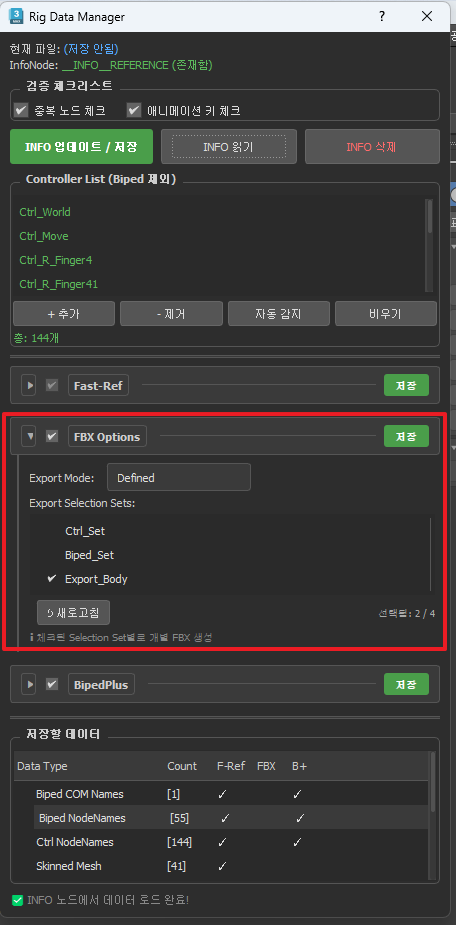
Selection Set
Saves "Export this character with this Selection Set"!
Export Mode
Can select Auto or Defined!
💡 Tip: If you save the Selection Set in the rig file, you can export it the same way no matter what scene you open!
3️⃣ BipedPlus (Optional)
If you use the Reset/Mirror function:
Saved Item
What does this provide?
Initial Pose
Restore T-Pose with Reset!
Mirror Settings
Copy left-right symmetrical pose!
📖 Note: Detailed information about saving initial poses and mirror settings is described separately in the BipedPlus user guide.
🎮 How to Use
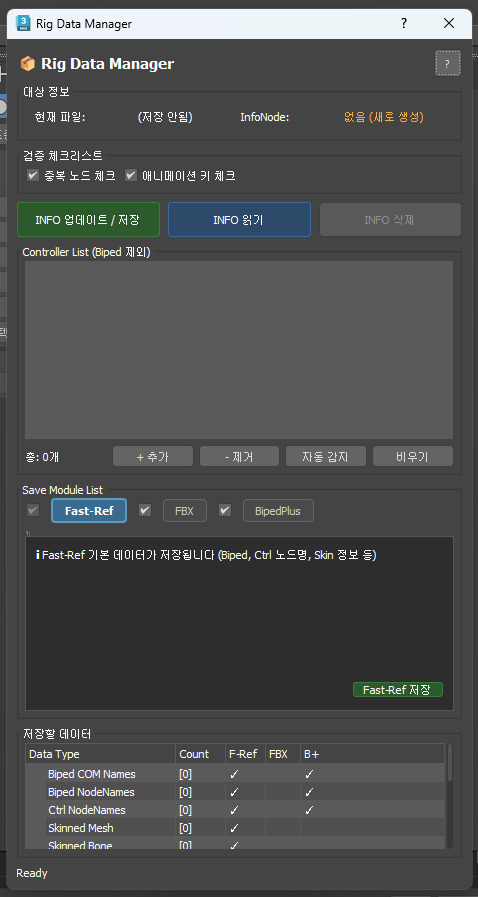
Step 1: Open Rig Data Manager
Fast-Ref 메인 UI → Tools 메뉴 → Rig Data Manager
Step 2: Check Target Information
Current File: Name of the opened .max file
InfoNode: Whether the INFO node exists
Step 3: Validation Checklist
Inspect items that may cause issues before saving:
Check Item
Description
✅ Duplicate Node Check
Warning if a node with the same name exists
✅ Animation Key Check
Warning if there are animations other than frames 0 and 1
⚠️ Caution: The rig must be saved in T-Pose or default pose state!
Step 4: Controller List Management
Register regular controller nodes that are not Biped:
Button
Function
+ Add
Add selected node to the list
- Remove
Remove selected item
Auto Detect
Auto-detect nodes with Ctrl_ pattern
Clear
Clear entire list
Step 5: Select Save Module List
Select the type of data to save:
Module
Description
☑️ Fast-Ref
Required for reference system (checked by default)
☐ FBX
FBX Export settings
☑️ BipedPlus
For Reset/Mirror function (checked by default)
Step 6: Save
INFO Update / Save (🟢 Green): Save to INFO node
INFO Read (🔵 Blue): Load existing data
INFO Delete: Delete INFO node
💡 Recommended Workflow
First Save After Completing the Rig
1. 리그 작업 완료 (T-Pose 상태)
2. Rig Data Manager 열기
3. Controller List에 컨트롤러 추가 (자동 감지 또는 수동)
4. Fast-Ref 체크
5. INFO 업데이트 / 저장 클릭
6. .max 파일 저장
Add FBX Export Settings
1. Rig Data Manager 열기
2. FBX 탭 클릭
3. Export Mode: Defined 선택
4. Export할 Selection Set 체크
5. FBX 저장 클릭
When Replacing References
INFO 노드 데이터를 기반으로:
- Biped 애니메이션 자동 복원
- 컨트롤러 컨스트레인 자동 복원
- 커스텀 본 애니메이션 자동 복원
❓ FAQ
Q: Where is the INFO node created?
A: It is created at the top level of the scene with the name __INFO__REFERENCE. It is in Point Helper form and does not affect rendering.
Q: What happens if I delete the INFO node?
A: Auto-analysis mode is activated and basic functions work normally. However, pre-saved settings (Selection Set, etc.) will no longer be available.
Q: What about when there are multiple characters?
A: Open each character's rig file (.max) and save the INFO node individually.
Q: Can I use it without BipedPlus?
A: Yes, of course! Just check Fast-Ref and save. BipedPlus data is optional.
Q: The UI is a bit inconvenient. Are there plans for improvement?
A: Yes, the UI was improved as of 2026.01.19, and it will become even more convenient in the next build. Even if it's inconvenient in the current version, please wait just a little. 🙏 It will be better than it is now. It's cumbersome now, but please use the current UI and we promise improvements in the next build!
Extract currently selected objects directly as FBX
Can be used without Reference (useful for collaborative work)
Supports individual FBX extraction by Selection Set
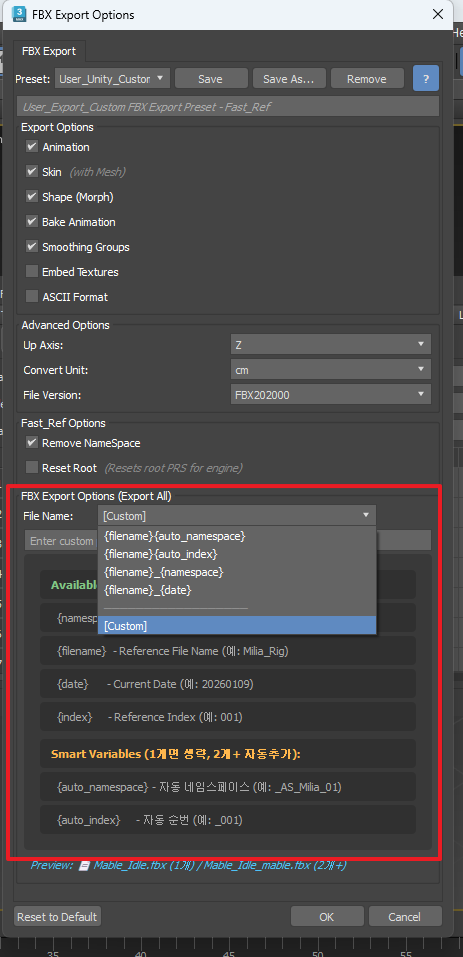
Filename Pattern System
Supports patterns such as {filename}, {namespace}, {auto_index}
Improved work efficiency with automatic filename generation
Batch Export
Extract multiple MAX files as FBX at once
Automatic log file generation
Selection Set Export/Import
Save selection sets as JSON files
Can be loaded in other scenes
Easy to share Selection Sets during team work
Animation Cleanup
Clean up unnecessary animation keys
Timeline optimization
🛠️ Improvements
Rig Info UI Improvements
Neatly organized with collapsible section UI
Added Mirror Presets system
Data management UI improvements
Stability Enhancements
Multiple Bip001 support
Enhanced stability for Custom Attribute animation restoration
📥 Installation Guide
Go to [My Account] → [My Products]
Download the file matching your 3ds Max version used with Fast-Ref
Drag and drop the .mzp file into 3ds Max
Restart 3ds Max
Run from top menu > OS Tools > Fast Ref
Fast-Ref
Bug Fix
2026-01-13
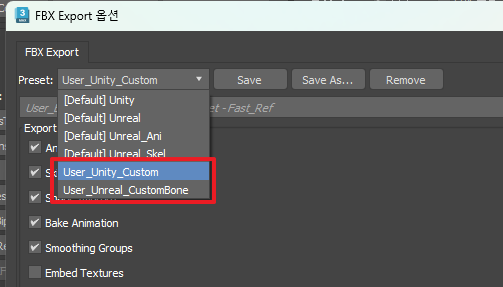
FBX Export Option Preservation Improvement
Cause: When reinstalling Fast-Ref, user-customized FBX options were reset, causing inconvenience. This update addresses that issue.
Fix: Even when reinstalling Fast-Ref, your previously saved FBX options (user presets) are now preserved without being reset.
Purpose: Enhanced convenience so you can quickly restore your previous work environment without the troublesome reconfiguration process after reinstallation.
Fast-Ref
New Feature
2026-01-13
FBX Manual / Selection Export Added
1. Background and Cause (Context)
Required engine registration procedure: To register characters or assets in Unreal or Unity engines, FBX data extraction in the base pose state is required.
Previous system limitation: The existing Fast-Ref system operated only based on data registered in the 'item list,' making it cumbersome to extract temporary objects not registered or data in specific states.
2. Solution
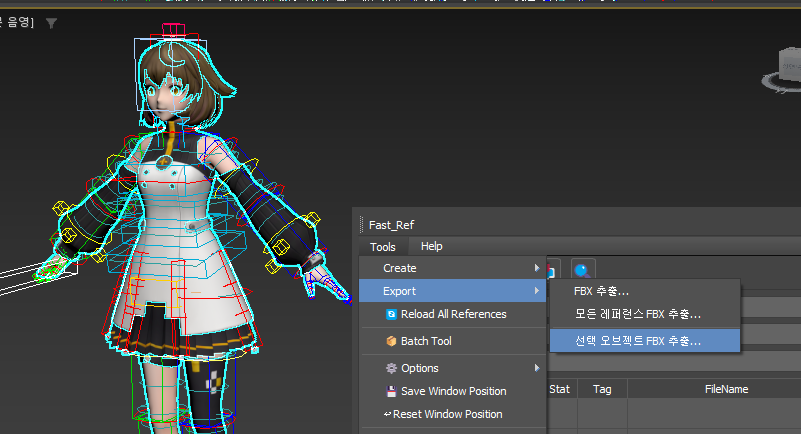
Manual extraction feature: The function has been made more flexible so users can extract any desired object immediately without going through the item registration process.
Navigation: Manual export can be done via [Export] → [Export Selected Objects as FBX] in the top menu.
Fast-Ref
New Feature
2026-01-13
Auto Cleanup Animation
🔍 Cause
Multiple cases were found where rig files were distributed with test animations included.
✅ Solution
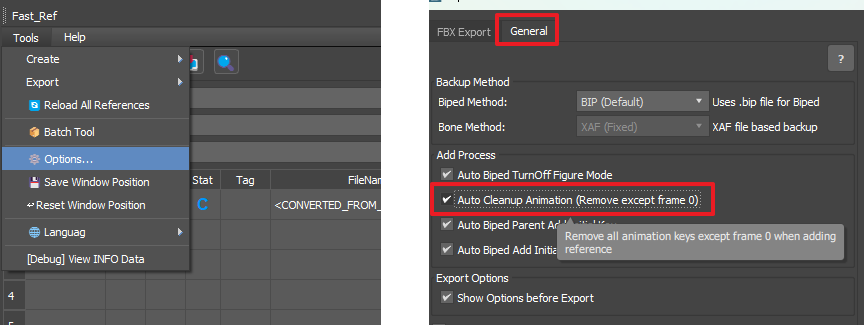
Added Auto Cleanup Animation (Remove except frame 0) option
When adding a reference, if animation keys exist in the rig file,
all keys except frame 0 are automatically deleted
.
Applies to both Biped and regular Bones
Configurable in Tools > Options > General > Add Process
Default: Enabled (True)
💡 Recommendations
When distributing rig files, we recommend setting the default pose (T-Pose, etc.) at frame 0.